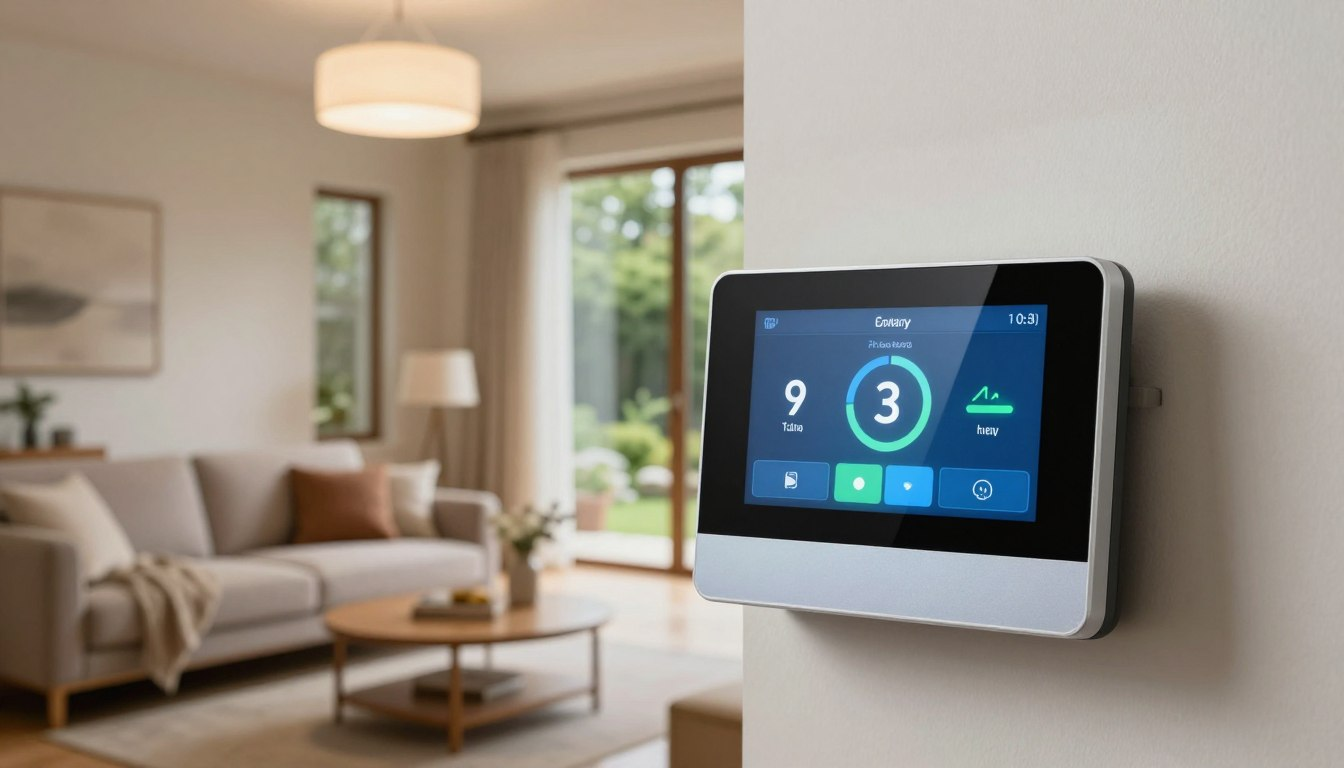
Most people who buy a smart thermostat connect it to Wi-Fi and leave it on the default settings. The bill barely changes. They assume the thermostat is not working — but the device is usually not the problem. The schedule is.
A smart thermostat can help reduce energy use by running your system less when the house is empty or everyone is asleep. But if you do not program those setbacks, it may simply hold the same temperature all day, just like a basic thermostat.
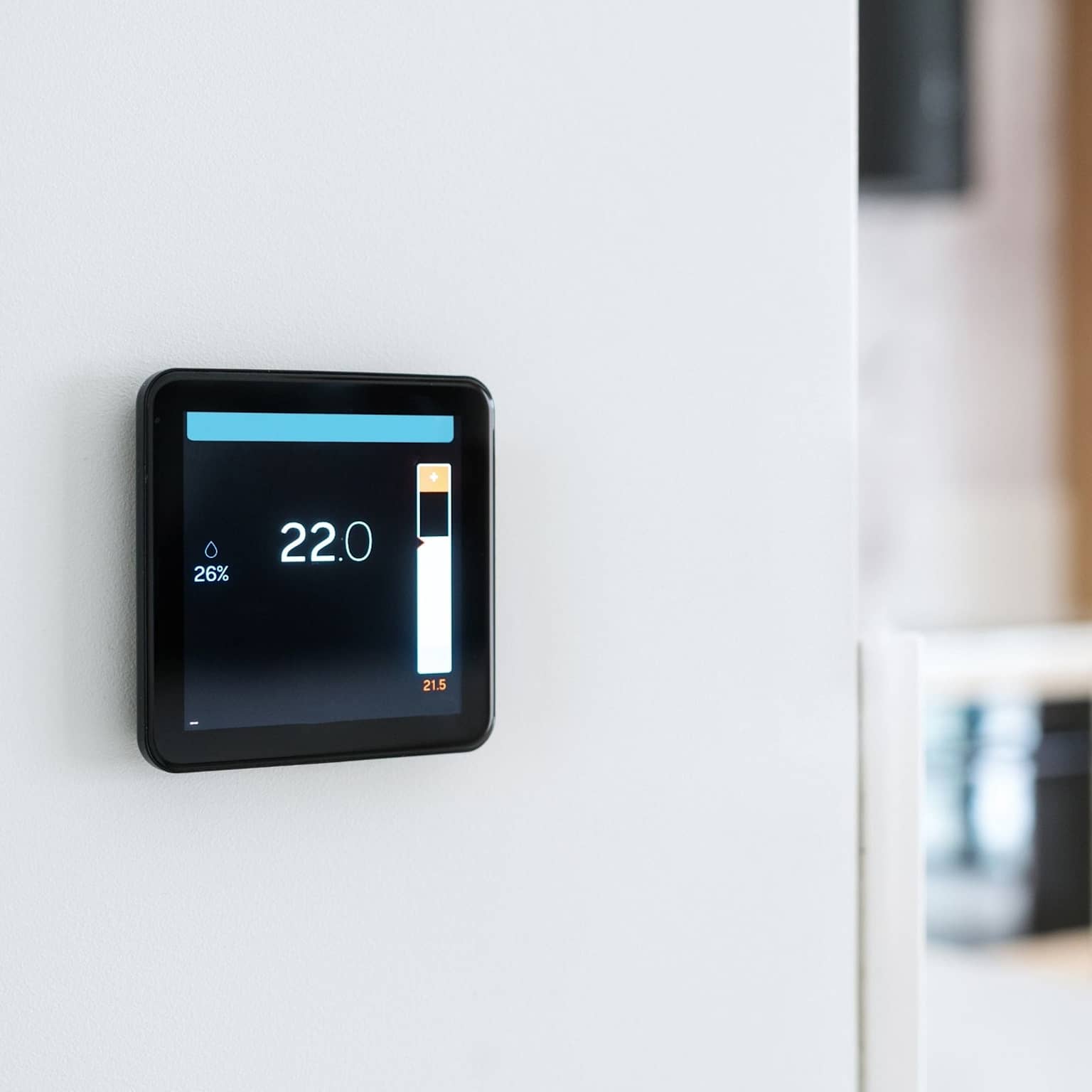
According to the U.S. Department of Energy, adjusting your thermostat by 7–10°F for 8 hours a day can save as much as 10% a year on heating and cooling, depending on climate and household conditions. This guide shows how to create a schedule based on your system type and daily routine.
Set up four blocks: Wake, Away, Return, and Sleep. For a gas furnace, a 7–10°F setback during Away or Sleep hours can work well for many homes, especially when comfort and pipe-freezing risk are not concerns. If you have a heat pump, use smaller winter setbacks — often around 1–3°F — and check your app history for AUX or emergency heat. Deep setbacks can trigger backup heat during recovery, which may reduce or erase the savings.
What to Set Up First
Before customizing anything, do these five things in order:
- Find out your system type — gas furnace, heat pump, radiant heat, or central AC. The right setback amount depends on the equipment.
- Set your comfort temperature — the temperature you actually want when you are home and awake. Live with it for a few days before building a schedule around it.
- Program Sleep first — this is usually the easiest block because it happens every night and does not require changing your daytime routine.
- Add Away second — especially if the house is empty for several hours at a time. Very short absences may not be worth a large setback, especially in extreme weather.
- Turn on Smart Recovery if available — this tells the thermostat to start warming or cooling before your scheduled Return time, so the house is comfortable when you arrive.
Step 1: Know Your System Type
A schedule that works well for a gas furnace may not work the same way for a heat pump. This is one reason some people see higher bills after installing a smart thermostat: the thermostat is using a schedule that does not match the equipment.
- If you rent: Check what type of system you have before setting deep setbacks. The air handler or indoor unit may have a label. If you are not sure, ask your landlord or building manager.
- If you have an older home with a boiler or steam radiators: Add extra time before your Wake block. These systems usually take longer to bring a room up to temperature than forced-air systems.
- If you have a heat pump: After your first cold night with a new schedule, check the app history. If AUX Heat appears often in the morning, reduce the overnight setback.
Step 2: Set Your Starting Temperatures
These are starting points, not rules. Adjust by 1°F at a time and give each change a few days before changing again. Homes with older adults, infants, pets, or people with certain health conditions should prioritize safe comfort over maximum savings.
Winter heating
- Home and awake: 68–70°F (20–21°C) is a common starting range for many homes.
- Sleeping: 62–65°F (17–18°C) may work for some homes with furnaces, but use gentler changes if the home is poorly insulated or has a heat pump.
- Away: 60–62°F (15–16°C) may work for some furnace-heated homes, but avoid settings that create freezing risk, discomfort, or long recovery times.
Summer cooling
- Home and awake: 75–78°F (24–26°C) is a common starting range. Ceiling fans can help many rooms feel cooler.
- Sleeping: Match your daytime setting or adjust slightly based on comfort and humidity.
- Away: Raise the setpoint while the house is empty, but avoid letting indoor humidity or heat become excessive.
- If your bill is high in winter: The Away block may help if the house is empty for several hours. Start with a moderate setback and adjust slowly.
- If your bill is high in summer: Raising the Away setpoint can reduce AC runtime, but keep humidity and pets in mind.
- If you live in a small apartment: Shared walls may reduce heat loss. A smaller Sleep setback may be enough, and aggressive changes may not produce much extra benefit.
Step 3: Pick a Schedule That Fits Your Routine
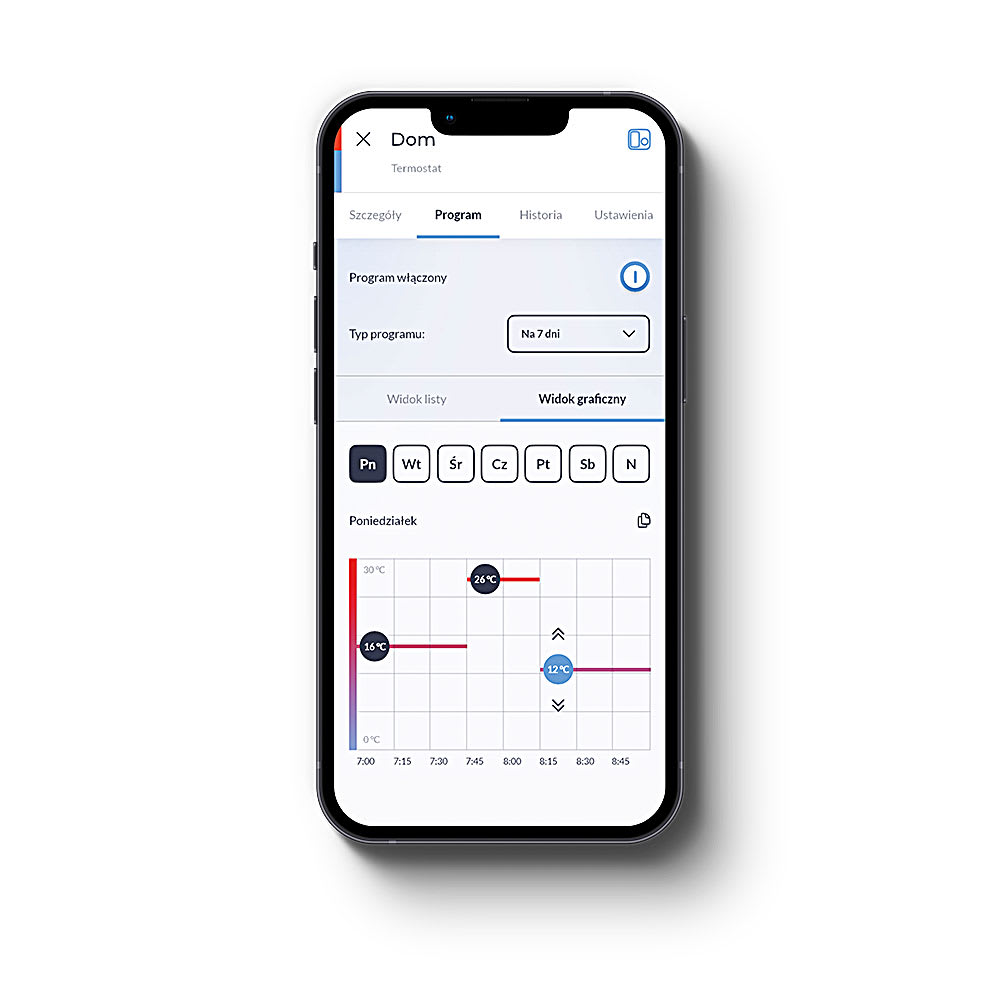
Use the template closest to how your household actually works, then adjust the times to match your real day. Do not over-engineer it. A simple schedule you leave alone is better than a complex one you keep manually overriding.

Template 1: Standard Commuter
Enable Smart Recovery if available, so the house begins adjusting before your Wake or Return time.
- 6:00 am — Wake, comfort temperature
- 8:30 am — Away, setback temperature
- 5:00 pm — Return, comfort temperature
- 10:30 pm — Sleep, setback temperature
Template 2: Work From Home
Do not use a full Away setback during the day if someone is working from home. A small 1–2°F adjustment may let the system rest without making the workspace uncomfortable.
- 6:30 am — Wake, comfort temperature
- 9:30 am — Light setback, 1–2°F adjustment
- 5:30 pm — Evening, comfort temperature
- 11:00 pm — Sleep, setback temperature
Template 3: Kids at School
This uses a shorter Away window and brings the home back to comfort before children return.
- 6:00 am — Wake, comfort temperature
- 9:00 am — Away, setback temperature
- 2:30 pm — Return, comfort temperature
- 10:00 pm — Sleep, setback temperature
Template 4: Night Shift Worker
This flips the standard schedule. The main comfort period is the afternoon before work, and the Sleep block covers daytime rest.
- 3:00 pm — Wake, comfort temperature
- 6:30 pm — Away, setback temperature
- 8:00 am — Return, comfort temperature
- 10:00 am — Sleep, daytime setback
Template 5: Irregular Schedule
If your hours change week to week, fixed time blocks may frustrate you. Set a reliable Sleep and Wake block, then consider geofencing or occupancy features for Away periods.
One caveat: Geofencing works best when every regular household member’s phone is connected. If someone stays home while others leave, the system needs to know so it does not set back an occupied house.
Heat Pump Warning: How Schedules Can Cost You More
Heat pumps move heat rather than creating it directly, which can make them efficient. But in cold weather, a large temperature recovery may cause the system to use auxiliary or emergency heat. That backup heat can use more electricity, so a deep overnight setback may not save money on some heat pump systems.
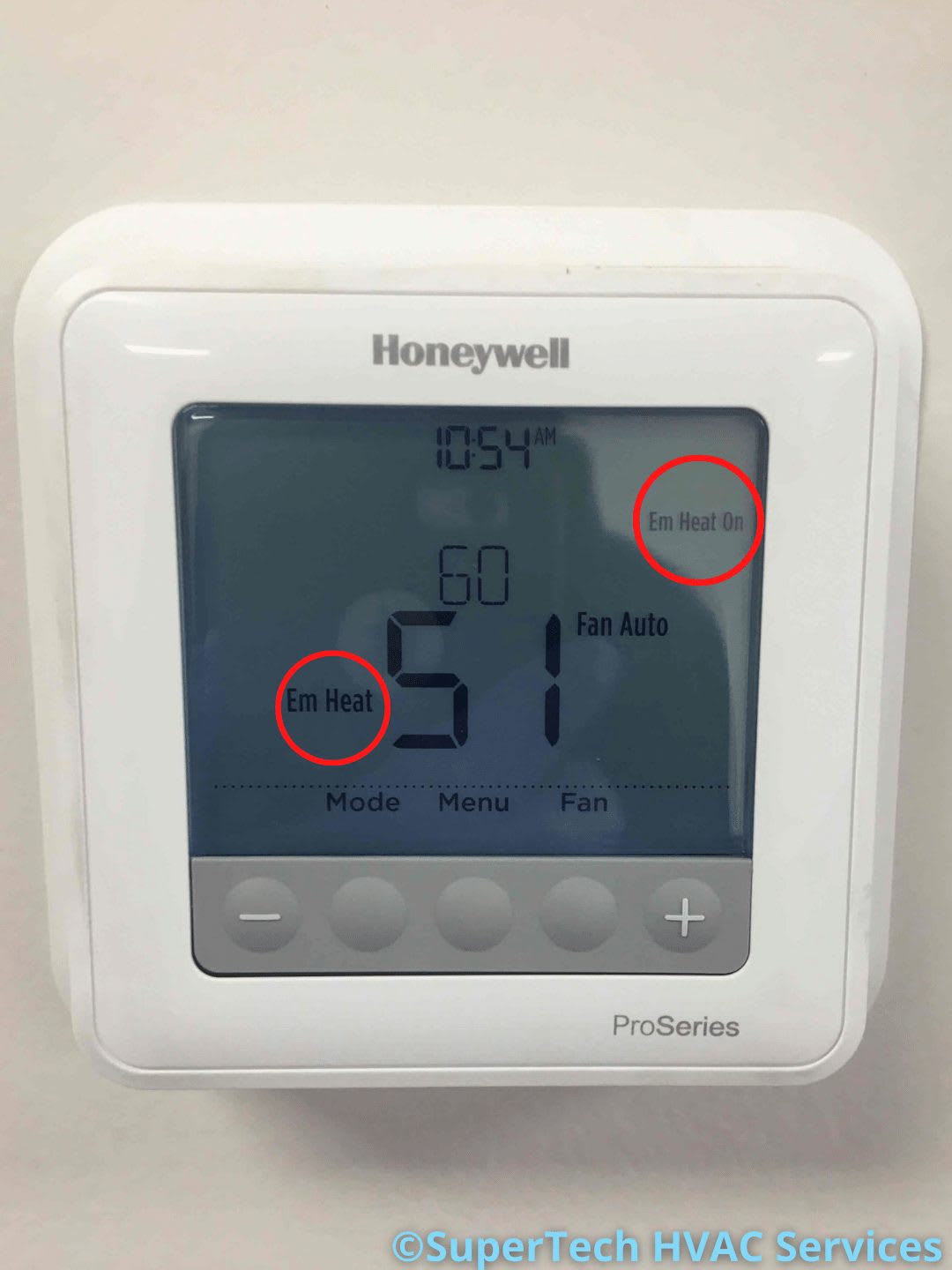
- Use smaller winter setbacks, often around 1–3°F, then check your thermostat history to see how the system responds.
- Enable Heat Pump Balance, Adaptive Recovery, or Smart Recovery if your thermostat supports it. These features can help the system recover more gradually.
- After your first cold night with a new schedule, open the app and check runtime history. If AUX Heat appears often in the morning, reduce the setback and monitor again.
What to Avoid
- Turning the system completely off when you leave. In many homes, a modest setback is safer and more practical than letting the house become extremely hot, cold, or humid.
- Deep setbacks on a heat pump in winter. This can trigger auxiliary heat during recovery and may reduce or erase savings.
- Setting the schedule and never checking runtime history. Your app can show how long the system ran each day. Use that history to adjust the schedule.
- Using geofencing without registering regular household phones. If one person stays home while others leave, the system should stay at comfort temperature.
- Copying a schedule without adjusting for your system. Every template is a starting point. Times and temperatures should match your equipment, climate, and routine.
- Making multiple changes at once. Change one block at a time, live with it for several days, then adjust. This makes it easier to know what actually helped.
Setup Checklist
- ☐ Identify your system type — gas furnace, heat pump, radiant heat, or central AC
- ☐ Set a baseline comfort temperature and live with it before building a schedule
- ☐ Program the Sleep block first
- ☐ Add an Away block when the house is empty for several hours
- ☐ Enable Smart Recovery if available
- ☐ If you have a heat pump, start with small winter setbacks and check AUX heat history
- ☐ Check runtime history after 7–10 days and adjust if needed
- ☐ If using geofencing, confirm all regular household phones are registered
- ☐ If AUX Heat appears often in morning history, reduce the overnight setback
Final Thoughts
A smart thermostat does not save energy simply because it is connected to Wi-Fi. The value comes from setting a schedule that matches your real routine and your HVAC system.
Start with Sleep and Away blocks, keep the schedule simple, and check runtime history after the first week. If you have a heat pump, be extra careful with winter setbacks and watch for AUX heat. A gentle schedule that you leave alone is usually better than an aggressive one you constantly override.
Common Questions
Do smart thermostats actually save money?
They can, mainly because they make scheduled setbacks easier to maintain. A manual thermostat can also save money if you remember to adjust it every day, but many people do not. A smart thermostat helps by handling those changes automatically.
Should I turn the system completely off when I leave for work?
Usually no. In many homes, a reduced setpoint is safer than turning the system fully off. In summer, a completely off system may allow excess heat and humidity. In winter, it may create comfort or freezing concerns. Use a modest Away setting instead.
What is geofencing and is it worth using?
Geofencing uses your phone’s location to detect when you leave or approach home, then adjusts the thermostat automatically. It is most useful when your schedule varies. It works best when every regular household member’s phone is connected, so the thermostat knows whether someone is still home.
How do I know if my schedule is actually working?
Open your thermostat app and check daily runtime history. Compare similar-weather days before and after the schedule change. If runtime is lower without comfort problems, the schedule is helping. If runtime is unchanged or people keep overriding it, adjust the times or temperatures.
My bill went up after installing a smart thermostat. What happened?
A common cause is a heat pump using AUX or emergency heat during recovery from a deep setback. Check the app history around your Wake time. If AUX Heat appears often, reduce the overnight setback and monitor again. Another common cause is a schedule that does not match the real routine, causing frequent manual overrides.
Is there a minimum time away that makes a setback worth it?
For many homes, setbacks work best when the house is empty for several hours. A quick one-hour errand may not be worth a large temperature change, especially in very hot or cold weather. Use smaller adjustments for short absences.